Appearance
Users
The Users page is where administrators manage everyone's account and access — who can sign in, what role they have, and the state of their account.
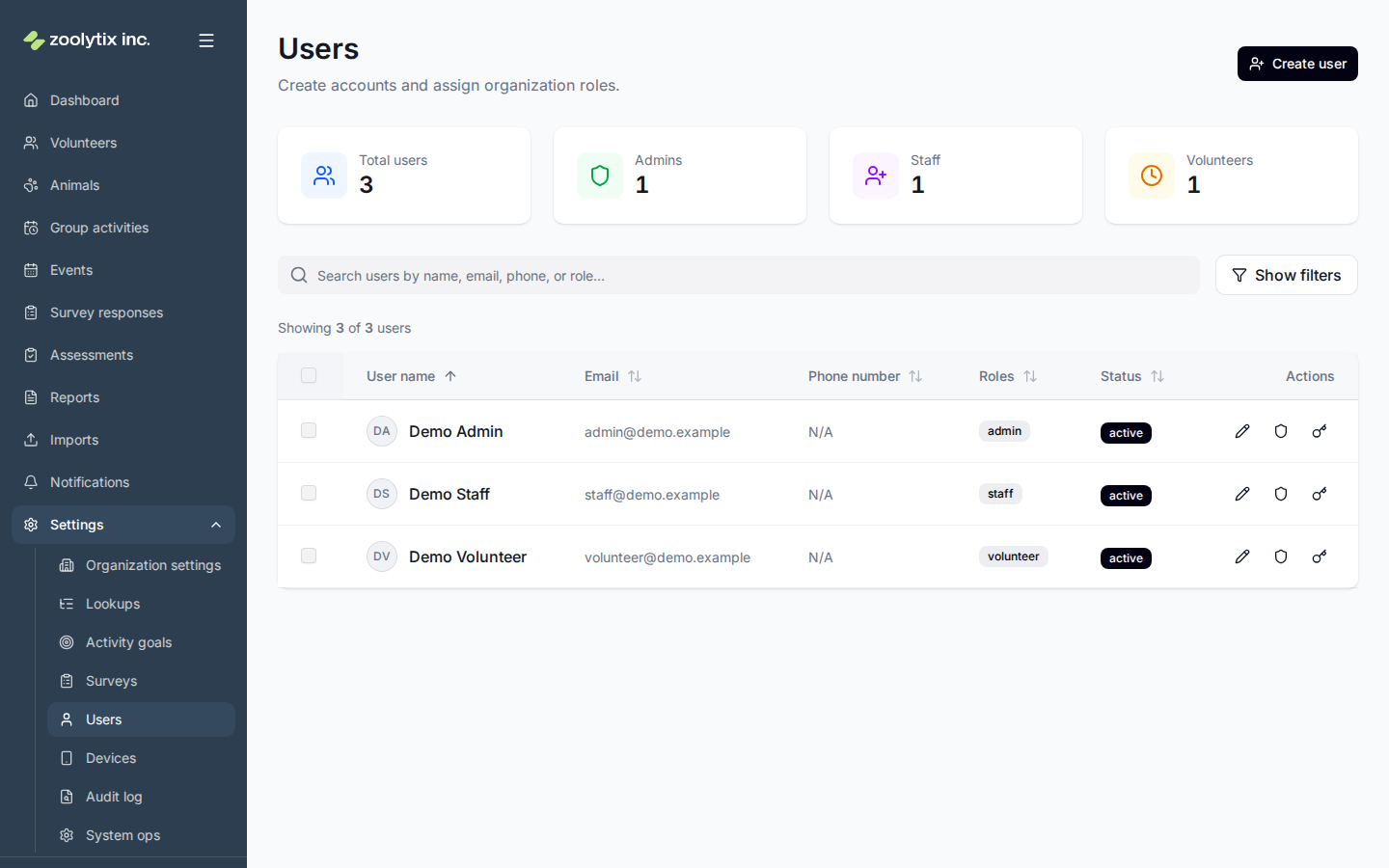
Who can use this page: administrators.
Users, roles, and how volunteers fit in
A user is anyone with a login. Each user has one or more roles in your organization — administrator, staff, volunteer, or foster — and the role decides what they can see and do.
Roles combine: a person with more than one role gets every permission from each of them. The administrator role currently includes everything staff, volunteers, and fosters can do, so an administrator doesn't need extra roles today. To change someone's roles, click Edit roles next to their role badges in the list, edit them in the Roles section of the Edit user dialog, or use Edit roles on the Profile view of their detail page — roles live with the profile now, not on a separate tab.
A volunteer isn't a separate kind of account; it's a user with the volunteer role (plus a volunteer profile). That's why the same person can appear both here and on the Volunteers page — the Volunteers page is the people-and-activity view, while this page is the account-and-access view. Manage logins, roles, and security here.
What you can do here
- Invite a new user
- Resend an invite or check who hasn't finished signing up
- Send account-setup invites to several people at once (select them, then Bulk actions → Send invites)
- Change someone's roles with Edit roles (next to their role badges)
- Restrict or reinstate an account
- Correct someone's details, or see who can
- Record a deletion request a member asked for
Invite someone new
- Click Create user and enter their name and email.
- (Optional) Add a phone: choose the country first, then type the local number — the country code is filled in for you, so you don't type it.
- Assign one or more roles.
- They receive an email that names your shelter, with a link to set up their account (it lasts 72 hours). The email, and the setup page once they finish, point them to the ShelterSync phone app first — with App Store and Google Play links — and to signing in on the web second. Everyone gets the same message, whatever their role. If their account has no date of birth on file, the setup page asks for it (accounts under 13 are not permitted).
Adding a whole group? Use Imports instead of one-by-one.
Inviting imported people (fosters and volunteers)
A CSV import deliberately sends no invites — the accounts exist but nobody gets an email until you're ready to onboard them. When that time comes, select the imported people in the list and use Bulk actions → Send invites: everyone who hasn't yet activated gets an account-setup link (72-hour validity), and anyone who already signed in or set a password is skipped automatically. The Invite status column shows who's pending, expired, or done; single-person resends stay available from the row's send button.
Resetting passwords
You don't set passwords for people — they set their own through a reset link. To send one, use Send password reset (the key button) on their row, or reset many at once: select several users and use the bulk password reset action. The link lasts 30 minutes. The email says an administrator sent it, names your shelter (unless the person belongs to more than one), and, like the invite, points them to the phone app and then the web.
A row offers Send password reset only once the person has finished account setup. Until then it offers Resend invite instead, because someone who has never set up their account needs an invitation, not a reset. To get people from an import ready to sign in for the first time, use Send invites — see Inviting imported people. An invite link lasts 72 hours, where a reset link lasts 30 minutes.
Other bulk actions
Tick several users to act on them together — change roles, restrict or reinstate accounts, or send a notification. Each action records an individual entry in the audit log.
Restricting access
If someone should stop having access, restrict their account (with a reason) rather than deleting it. Restricted accounts stay intact and can be reinstated later, so no history is lost.
Setting someone's Membership status to inactive changes your shelter only. Their account, and any other shelter they belong to, are not affected. Only Zoolytix support can switch off a whole account, because it covers every shelter the person belongs to.
If a person's whole account is switched off, their row shows Account switched off beside their status, their page (opened from their name) shows it with a note, and the Edit user dialog says so. They can't sign in at any shelter, whatever their status here says. Only Zoolytix support can switch it back on. Contact us if it should be.
Correcting someone's details
A person's name, email, phone, date of birth and address belong to their own account, which they may share with other shelters. Once they have set up their account, these details are theirs: in the Edit user dialog they show read-only, with a note saying so. They change them on their profile, all but the email. For the email, or if they can't do it themselves, Zoolytix support can change their name, email or phone at their request.
Before someone has set up their account, you can usually still correct what was entered, such as a typo in their email. If you correct the email while their invite is still open, the old link stops working and a new invite goes to the new address.
What stays with your shelter: their roles, their status here, any restriction, and their profile photo and visibility.
If you create a user who already has a ShelterSync account, they're added to your shelter, but the details already on their account are kept rather than replaced by what you typed. A message tells you which ones.
If someone asks you to delete their data
People can delete their own data from their profile, on the web or in the app, and that is how it normally happens. But some can't: a volunteer added by an import who has never had a password, or someone who has lost access to ShelterSync but not their email. For them, open their detail page and use Record a deletion request.
This is not how you remove somebody from your shelter. To end someone's access, restrict them — see above. Restriction is about access; this is about erasing their personal details, and it is their decision rather than yours.
You are asked to record how you verified them: who checked their identity, how, and why they can't do it themselves. That's required, not optional — weak verification is what would turn deletion into a way to attack somebody. What you write is kept as the record that the deletion was properly authorised, and it outlives the account.
Filing the request does nothing on its own. ShelterSync emails the person at the address on their account — never one you supply — and asks them to confirm. Until they do:
- they keep working normally, nothing is hidden, and no 30-day clock is running;
- you can withdraw the request;
- if the email didn't go out, ShelterSync tells you so, and you can Resend confirmation link.
You can't confirm it for them. Erasing somebody's history has to be their own decision, and a shelter that could both ask and answer would make it the shelter's. Once they confirm, the usual process starts: access stops, and the removal completes 30 days later unless they stop it.
If they can't be reached by email at all — a dead address, a changed number — contact Zoolytix, who can complete the verification directly and record how it was done.
When a person belongs to more than one shelter
A single user can be a member of several organizations — useful for staff who help at more than one shelter, or for Zoolytix administrators. Each membership is separate: the person has their own roles, status, and lockout state in each organization, and when they sign in they choose which organization they're working in. Changes you make here apply only to your organization's membership; they don't affect that person at another shelter.
Fields explained
| Field | What it means |
|---|---|
| Role | What the person can see and do. Admins manage settings; staff run daily operations; volunteers and fosters have focused access. Roles combine: a person with more than one role gets every permission from each of them, and the admin role currently includes everything the other roles grant — so an admin doesn't need extra roles today. To change someone's roles, use Edit roles next to their role badges, edit them in the Roles section of the Edit user dialog, or use Edit roles on the Profile view of their detail page. |
| Invite status | Whether a person has finished account setup. 'Invite pending' means their setup link is still valid; 'Invite expired' means it lapsed — use Resend invite to send a fresh link. Until someone has finished setup, their row offers Resend invite instead of a password reset. People who have set a password are accepted and show no badge (reset their password instead if they're locked out). To invite many people at once — for example fosters brought in by a CSV import, which deliberately sends no invites — select them and use Bulk actions → Send invites; anyone already active is skipped. When someone activates an account that has no date of birth on file, the setup page asks for it (accounts under 13 are not permitted). |
| Name, email, phone, date of birth and address | These belong to the person's own account, which they may share with other shelters. Before they set up their account you can usually still correct them. After that they're read-only here: the person changes them on their profile (all but the email), and Zoolytix support can change their name, email or phone if the person asks. |
| Phone | Pick the country, then type the local number — the country code is added for you, so don't type it yourself. The phone is used for sign-in and SMS verification codes, so it must be reachable. You can make up to 10 phone and email changes an hour, together: changing someone's phone or email here, and changing your own number on your profile. You can try to add up to 30 people an hour, apart from those. |
| Date of birth | Optional. Used only to protect younger users. Anyone under 13 can't be added. Anyone under 18 is treated as a minor and their profile is set to private by default. It's never shown on shared lists or reports. |
| Membership status | Whether this person is active at your shelter. Setting it to inactive changes your shelter only; their account and any other shelter they belong to are not affected. Only Zoolytix support can switch off a whole account. |
| Account switched off | Shown beside the status when the person's whole account is switched off. They can't sign in at any shelter, whatever their membership status here says. Only Zoolytix support can switch it back on. Contact us if it should be. |
| Profile visibility | Who can see this person beyond administrators and staff. Private keeps their name, photo, and activity off shared lists like the volunteer leaderboard; Organization lets them appear there. Minors default to private — you can change it, but the choice is deliberate and never nudged. |