Appearance
Survey builder
The Survey builder is where administrators design the questionnaires the rest of ShelterSync uses. It builds two things with the same tools:
- Activity surveys — the short questionnaires volunteers fill in after an activity.
- Assessment templates — the scored behavioral assessments run on the Assessments page.
Who can use this page: administrators. This is the most technical page in ShelterSync, so this section goes into detail.
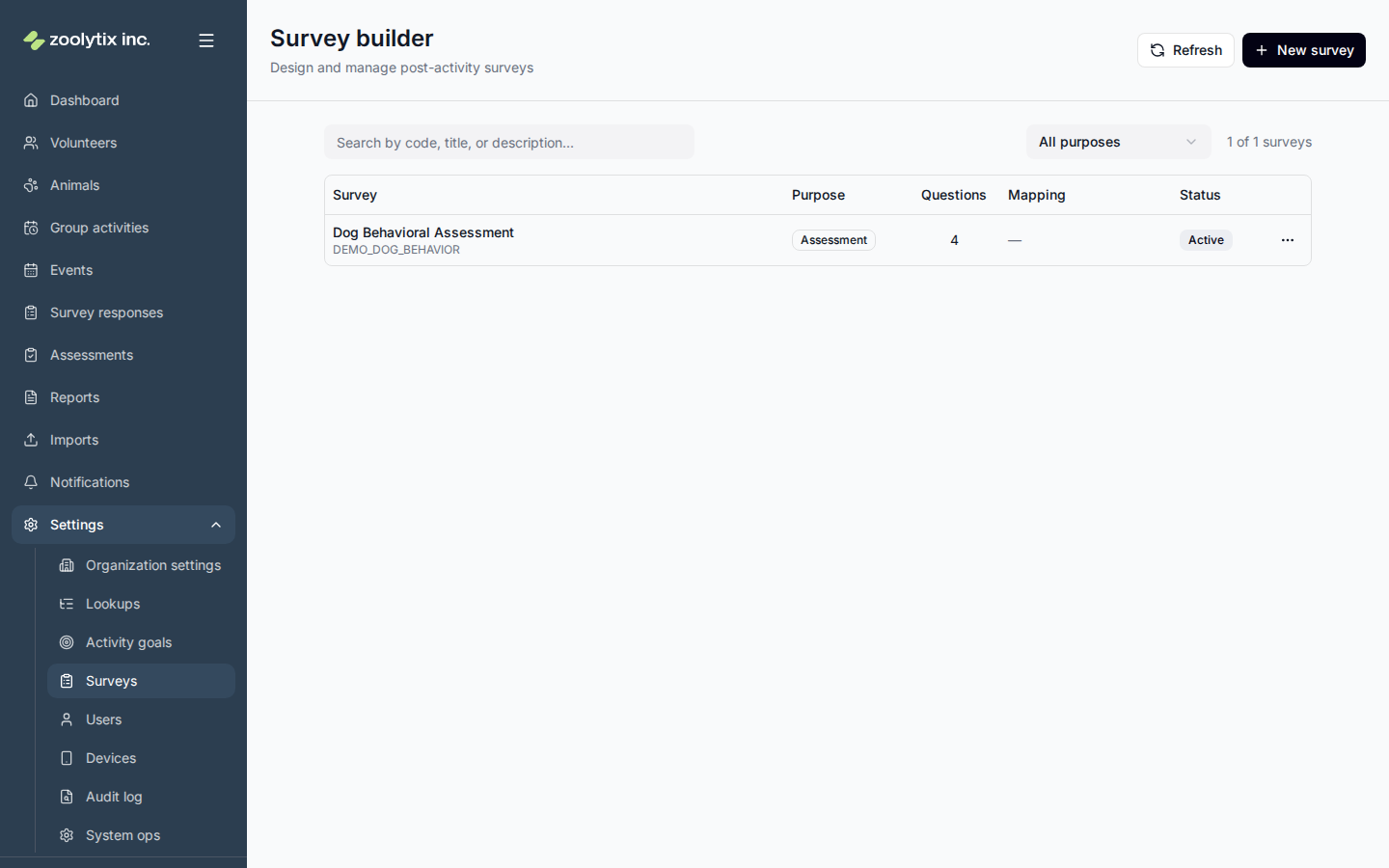
The Survey builder page itself is a management list — search and filter your surveys, View one, Clone it as a starting point, or Deactivate/Activate it. New survey (and Edit on a row) opens the full-page block editor, organised into two tabs:
- Properties — the details (purpose, title, code, description), plus the activity-type mapping (activity surveys) or the species targeting and Scored toggle with handling-recommendation thresholds (assessments).
- Builder — the three-pane authoring surface: a palette on the left (question types, a Show-when rule, and property blocks), a canvas in the middle where each question is an editable block, and a live preview on the right.
Switching tabs keeps your edits; if something's missing when you Save, the editor jumps to the tab with the problem. On the Builder tab, add a question by clicking its type (the whole palette card is clickable) or dragging it onto the canvas — a line shows where it will land, so you can drop it between two existing questions. Reorder questions by dragging the grip handle on each block.
The pieces of a survey
A survey has a few top-level settings and a list of questions.
- Title — the human name people see.
- Code — a short, stable machine name for the survey (for example
DOG_BEHAVIOR_ASSESSMENT). Unlike the title, the code is meant not to change; it's how the survey is referenced behind the scenes and in any integrations. Use letters, numbers, and underscores. - Description — optional notes about what the survey is for.
- Purpose — either Activity survey or Assessment. This decides where the survey is used and whether it's scored.
Questions
Add questions one at a time. Each question has:
- Question text — what you're asking.
- Type — how it's answered (see below).
- Key — a short, unique name for the question within this survey, in
lowercase_with_underscores(for examplefood_aggression). The key is how each answer is stored and how other questions refer to this one. New questions get a default key (question_1,question_2, …) so they work right away — including showing up in other questions' Show-when rules — and you can rename it. Once a question has answers, its key can't change (see below). - Dimension (optional, for assessments) — a grouping label. Questions that share a dimension have their scores added together, so you can see a subtotal per area (for example all the
aggressionquestions). - Options — for choice questions, the answers to pick from. Each option can carry a score (see scoring below).
Editing a survey that already has answers
Saving a survey keeps every answer already given to it. Each answer stays attached to its question, which ShelterSync recognises by its key, and to the option that was picked, which keeps its identity when you reword it. So you can reword a question or an option, change rules, scores or the Required setting, reorder questions, and add new questions and options; earlier responses just have no answer for a question added later.
A few changes would cut answers loose, so the save is refused, with a message naming the question, and nothing changes:
- removing a question that has answers, or changing its key;
- changing an answered question's type;
- removing an option someone has picked;
- removing a number question's score band that an assessment answer fell into, or changing its comparison or threshold (the answer is linked to that band; its score can still change).
Questions and options nobody has answered yet can be removed or changed freely.
Question types
| Type | How it's answered |
|---|---|
| Single choice | Pick one option from a list. |
| Multiple choice | Pick any number of options. |
| Yes / no | A simple yes/no. Other questions can Show-when on the answer, and on scored assessments Yes and No can carry their own point values. To also capture a comment, add a short or long text question with a Show-when rule so it appears only when the answer is Yes. |
| Rating | A 1–5 scale. |
| Number | A numeric value. |
| Short text / Long text | Free text — a line, or a paragraph. |
Choice, rating, and number questions can contribute to a score; text questions are for context and aren't scored.
Dynamic properties in question text
Question text can include dynamic properties that fill in automatically with the details of the animal being worked with. Type a property token where you want the value to appear:
How does
{{animal.name}}respond to handling?
When a volunteer answers about a dog named Rex, they see "How does Rex respond to handling?". The name is filled in by ShelterSync when the survey is shown — you don't type it yourself. To add one in the builder, open a question, place the cursor in its prompt, then click a property chip in the palette to insert it at the cursor (or drag the chip onto the prompt and drop it exactly where you want it — anywhere across the field, including after the last word). Once it's in, you can drag the property pill to a different spot in the prompt.
Available properties:
| Property | Fills in |
|---|---|
{{animal.name}} | The animal's name |
{{animal.species}} | Species (dog, cat, …) |
{{animal.breed}} | Breed |
{{animal.sex}} | Sex |
{{animal.age}} | Approximate age (for example "3 years") |
{{handler.name}} | The volunteer or staff member filling it in |
{{activity.name}} | The activity the survey follows |
Fallback when there's no name. If an animal has no name on file, {{animal.name}} becomes "the dog" (or whatever the species is) — and "the animal" when even the species is unknown. A volunteer never sees the raw token. Because no real animal is selected while you build the survey, the live Preview fills tokens in for a sample animal — use the Previewing as dropdown in the preview header to flip between a Dog ("Duke — German Shepherd, male, 4 years"), a Cat, and an Unknown (no-name, 8-week-old) animal, so you can see both real-looking values and the fallback wording.
TIP
Write the sentence so it reads well in the fallback too — "How does {{animal.name}} respond?" reads correctly as both "How does Rex respond?" and "How does the dog respond?".
Showing questions only when relevant (visibility)
A question can have a show-when condition so it only appears when it's needed. Drag the Show-when rule from the palette onto the question's rule slot — or just click the slot — to add a first condition straight away, then build it out under Show this question when…:
- Add one or more rows. Each row is a field, an operator, and a value.
- A field can be an earlier answer in this survey, or a property of the animal being worked with — its species (picked from your organization's species list — no typing, no case mistakes), sex, age (in months), or whether it has a tag.
- When you add more than one row, choose whether all or any of them must be true.
- Use Add group to nest a bracketed sub-group with its own all/any, so you can express things like (species is cat and age under 3) or weaned is No. Groups can nest as deeply as you need.
- To put a condition you've already added into its own group, use its Group action (shown when there's more than one condition to group with); Ungroup lifts a single-condition group back out. This lets you build two side-by-side groups — (C1 and C2) or (C1 and C3) — without deleting and re-entering conditions.
- When the field is a single/multiple choice, yes/no, or rating question, the value is a picker of that question's own answers rather than free text.
- Remove the last row to clear the rule — the question goes back to always showing.
For example: show a "describe the bite" question only when an earlier "has this animal bitten?" question was answered yes; or only ask a litter-box question when the animal's species is cat; or show an extra handling question when the animal has the bite history tag.
Conditions are checked when the survey is filled in. A question whose condition isn't met is hidden and skipped — it won't be required and won't be scored. Leave the condition empty to always show the question.
TIP
Animal conditions (species, sex, age, tags) read the animal from the assessment or activity on the server, so they always reflect the real animal — you can't accidentally point them at the wrong record.
For a rule the guided builder can't express, switch to Advanced to write the expression by hand. Hand-written rules use the same {{question_key}} references plus operators like ==, !=, >, contains, &&, and ||.
Not supported
Showing a question based on a running score (e.g. "appear once the total passes 10") is not available. Use an earlier answer or an animal property instead.
Checking answers (validation)
A question can also have a Validation rule that the answer must satisfy before the survey can be submitted. Click the question's validation slot ("Add a validation rule") to add a check, then pick from the checks that fit the question's type — only applicable ones are offered. Combine as many as you need (all must pass):
- Minimum length / Maximum length — for short or long text.
- Must be a number / Must be an email / Must be a phone — for short text.
- Minimum value / Maximum value — for number and rating questions (keep an answer within a sensible range).
Choice, yes/no, and boolean questions have no applicable checks, so they show no validation slot — to make an answer mandatory there, use the Required toggle (that's separate from validation).
An Advanced escape hatch lets you write a raw expression for anything the blocks can't express. Validation is enforced when the survey is submitted: a failing answer is rejected and the person is asked to fix it before they can finish.
TIP
Visibility and validation rules are powerful but easy to get wrong. Build the survey, then fill it in yourself to confirm questions appear and validate the way you expect.
Trying the survey in the preview
The Preview pane isn't just a picture — you can answer its questions to try the survey exactly as a volunteer would, without publishing or submitting anything (preview answers are never saved):
- Show-when rules run live. A question whose rule isn't met stays in place but grayed out, with a Hidden by rule pill and a plain-language summary of its rule — e.g. Appears when: Overall mood after [Animal name]'s walk? is Reactive. Answer the triggering question and it reveals itself, picking up its number, controls, and required marker; hidden questions take no number.
- The running score simulates scoring. For a scored assessment, a Running score line under the description totals the selected options' scores as you answer, with a color-coded handling-recommendation pill (Standard handling (green), Experienced handler (yellow), Specialized handling (red)) based on your thresholds.
- Validation runs live. An answer that would fail the question's validation rule at submit is flagged inline — e.g. Answer must be at least 5 and at most 10. — and the message clears as soon as the answer passes. Unanswered questions are never flagged (matching submit, where validation only checks provided answers).
- The sample animal feeds the rules. Rules on the animal's species, sex, or age react to the Previewing as persona — switch to the Unknown sample (8 weeks old) to watch an age-gated question appear. The samples carry no org tags, so tag-based rules read as "no tags" in the preview.
This is the fastest way to confirm rules and scoring do what you expect before anyone answers for real; the server still enforces everything at submit time.
Scoring and the handling recommendation (assessments)
Assessment templates have a Scored setting:
- Scored (default) — answers add up to a score, and the score maps to a 🟢 green / 🟡 yellow / 🔴 red handling recommendation. This is described below.
- Unscored — the template is a pure observation form. Answers are recorded, but there's no total score and no handling recommendation (and no risk tag on the animal). Turn this on for intake checklists, observation logs, and other forms whose value is the recorded answers, not a verdict. When a template is unscored, the per-option scores and the recommendation thresholds are hidden because they don't apply.
The rest of this section applies to scored templates.
A scored assessment template turns answers into a score, and the score into a 🟢 green / 🟡 yellow / 🔴 red handling recommendation.
Give answers points. On a choice question, set a score on each option (a "calm" answer might be 0, an "aggressive" answer 3). A Yes/no question can give Yes and No their own point values (a "has bitten? Yes" might be 5, "No" 0) — leave both blank to keep it unscored. A Number question can score by comparison bands — e.g. for "How many times did the cat use the litter box?", more than 2 might score 5 and 2 or fewer score 0, because the threshold is the signal, not the raw count. Bands are checked top to bottom and the first match scores; with no bands, the answer contributes its own value, as ratings do.
Set the thresholds. The survey's scoring rules say which total maps to which color. They're written as a small block of JSON. For example:
json{ "riskThresholds": [ { "color": "green", "max": 4 }, { "color": "yellow", "max": 8 }, { "color": "red", "max": null } ] }Read it top to bottom: a total of 4 or less is green, 5–8 is yellow, and anything above 8 is red (
max: nullmeans "no upper limit — everything else").
When someone submits an assessment, ShelterSync adds up the points and picks the color from these thresholds to set the handling recommendation (green = Standard handling, yellow = Experienced handler, red = Specialized handling). It's a signal to help match animals to the right people and activities — it does not change the animal's status, and it is not the animal's own handling tier, which stays a separate, deliberate setting. See Behavioral assessments.
Connecting an activity survey to activities
For an activity survey, you choose which activity types it follows. You can also set, per activity type:
- First-time survey only — ask it only the first time each volunteer does an activity with an animal. It is skipped once that volunteer has any first-time survey with that animal, filled in or still waiting, whichever survey and activity type it came from. A different volunteer with the same animal is still asked.
- Required for activity completion — saved with the survey, but not enforced yet: a volunteer can end the activity without finishing the survey. An unfinished survey waits for them under Pending surveys in the phone app (see Your first day on the phone).
Connecting a survey is optional, and an activity type can go without one. When an activity type has no survey attached, a volunteer finishing that activity on their phone is asked where the animal is going back to and given a single Notes box — nothing else. Attach a survey and the survey takes that place: it becomes the only thing they are asked, so nobody answers two sets of questions about the same session.
Fields explained
| Field | What it means |
|---|---|
| Dynamic properties in question text | In the builder, insert a property token (a "property block") into a question to auto-fill the animal's details when someone answers — for example a question that references the animal's name shows "How does Rex respond to handling?". Open a question, place the cursor in the prompt, and click a property chip (or drag it onto the prompt and drop it at the exact spot you want). Available properties are animal.name, animal.species, animal.breed, animal.sex, animal.age, handler.name, and activity.name. If the animal has no name, the name token falls back to "the dog" (or "the animal" when the species is unknown), so a volunteer never sees the raw token. |
| Show this question when… | In the builder, drag the Show-when rule onto a question (or open its Advanced options) to build a condition so the question only appears in certain cases. Add rows of field, operator, and value — compare an earlier answer, or the animal's species, sex, age (in months), or tags — and choose whether all or any must be true. Conditions are checked when the survey is filled in; a hidden question is skipped and not required. Leave it empty to always show the question. |
| Scored (assessments) | Assessment templates can be Scored or Unscored. Scored (the default): answers add up to a total and map to a green/yellow/red handling recommendation. Unscored: a pure observation form — answers are recorded with no score and no handling recommendation (and no risk tag on the animal). When a template is unscored the per-option scores and the recommendation thresholds are hidden. Activity surveys are never scored. |